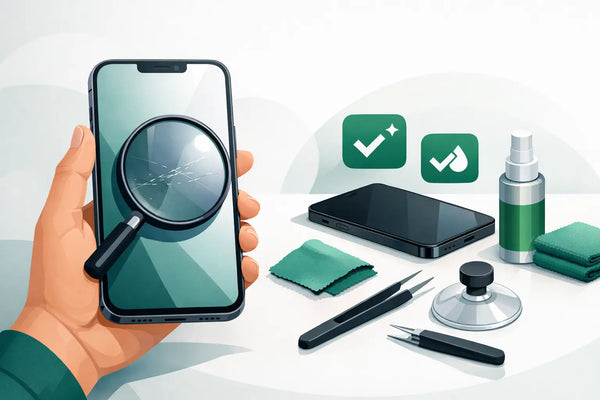
An iPhone may look pristine at first glance, while a small screen issue only becomes apparent once you start swiping, typing, or watching a video. That is why checking an iPhone screen is a smart move, both when receiving a refurbished device and when purchasing an iPhone from someone else. With a few targeted tests, you can quickly see if the display responds clearly and if the condition matches your expectations.
With a refurbished iPhone, light signs of wear on the exterior are sometimes part of the chosen condition. That does not necessarily mean anything about the screen's operation. A display with a small cosmetic mark can function perfectly well from a technical standpoint. Cracks, black spots, flickering images, or areas where the touch does not respond are a different matter. These always deserve extra attention.
Checking an iPhone screen before use
Start by cleaning the screen with a soft, dry microfiber cloth. Fingerprints and dust can hide fine scratches or, conversely, look like damage. Then, examine the screen in good daylight and from multiple angles. Set the brightness high and look at a white background, for example in the settings or an empty note.
A uniform white image makes anomalies easier to spot. Look out for yellow, blue, or pink discolorations, dark spots, and vertical lines. Also check if the edges of the screen are as bright as the center. A single grain of dust under a screen protector is, of course, something else entirely than a blemish on the display itself. If a screen protector is applied, you can first attribute any scratches or air bubbles to that.
Next, put a dark image on the screen. On a black or dark gray surface, bright spots, faded areas, and unusually bright pixels are easier to notice. Don't just test this in a brightly lit room. You can see small flaws better in dimmed light. Keep in mind that some screen technologies may show a very slight color difference when viewed at an angle. This is not automatically a defect, as long as the image is uniform when viewed straight on and functions normally.
Check for cracks, scratches, and loose edges
Scan the four corners and the transition between the screen and the housing with your eyes. A superficial scratch is often only visible when the light hits it. You can sometimes feel a deeper scratch very carefully with a clean fingernail. Do not press hard on the screen. You won't be testing anything reliably that way, and you could aggravate existing damage.
Pay special attention to star-shaped cracks, splinters at the edges, and areas where the glass seems to be lifting. A screen that does not fit perfectly against the housing everywhere also requires a check. An iPhone with a visible crack may still work, but the risk of further damage from moisture, pressure, or dirt is higher. For a device offered as refurbished, visible signs of wear should always match the described condition.
Test the touch on the entire screen
A clear image is not the whole story. The touchscreen must also respond smoothly and accurately everywhere. Open an app where you can draw or create a new note. Slowly drag lines from left to right, from top to bottom, and diagonally across the entire display. Consciously go along the edges and corners.
If a line consistently breaks in the same spot, a part of the touch function may not be responding there. Does the screen react as if you are tapping somewhere while you aren't touching it? This is often called ghost touch. In that case, first close the app and restart the iPhone. If the problem persists, further investigation is wise.
Then type a few sentences on the keyboard. Check whether all letters respond, especially those at the outer edges. Switch between lowercase letters, numbers, and punctuation marks. During normal use, you often notice touch problems faster while typing than with a quick tap on an app icon.
Try a few gestures too: swipe up from the bottom, open the Control Center, scroll through a long page, and zoom in on a photo with two fingers. A good screen follows these movements without stuttering. A single small delay could also be caused by an app or full storage. If it occurs consistently in different apps, the cause may lie with the screen or the software.
Look at brightness and color reproduction
Adjust the brightness manually from low to high. The transition should be smooth, without severe flickering or sudden dark bands. Then open a photo with various colors or play a video. Skin tones, white, and dark areas are good points to evaluate. The image does not have to be excessively bright, but it should look pleasant and uniform.
Some iPhones automatically adjust the color temperature or brightness based on ambient light. This can make the screen appear warmer or cooler when you move between rooms. If you want to compare as objectively as possible, test in the same spot and adjust the brightness manually. Also check if settings for color filters or dark mode are on. These can change the image without there being anything wrong with the display.
Don't forget the functions around the screen
The screen works in tandem with components on the front of the iPhone. Therefore, call someone or play a voice message and then hold the phone to your ear. The image should turn off when the iPhone detects that it is close to your face. When you move it away, the screen should react again. This says something about the sensor by the screen.
Also check the selfie camera. Open the camera app, switch to the front-facing camera, and see if the image is sharp. If your model has the feature, test unlocking with facial recognition during normal setup and use. If a function does not work, try a restart first and check whether there is any dirt in front of the camera or sensors.
Sometimes a screen function is intentionally set differently. Think of larger text display, a different brightness, or accessibility options. That is not a technical problem, but it can give the impression that a screen is reacting strangely. Therefore, take a minute to review the settings before drawing conclusions.
What does this mean for a refurbished iPhone?
With refurbished, it involves more than a quick visual check. A professionally inspected device is tested for key functions, including the screen and touch controls. The cosmetic condition then makes it clear how many signs of wear you can expect on the outside. This allows you to choose between a more affordable device with visible light marks or a unit that looks cleaner.
That distinction is nice because you don't have to guess based on a single photo or a vague description. Someone primarily looking for a reliable device for school, work, or the family often gains more from clear information about condition, battery, and warranty than from a perfect exterior. A small scratch changes nothing about daily use when the image, touch, and other functions work well.
Keep the packaging and check your iPhone calmly at home immediately upon receipt. Test the screen before installing a screen protector and before fully wiping your old device. Take photos if you see anything that does not match the chosen condition. That helps to clearly explain what you have found when you contact customer service.
When should you contact us?
Contact us when you see clear cracks that were not mentioned, when part of the touchscreen does not respond, or when the screen shows lines, black spots, or persistent flickering. A screen that is coming loose from the housing is also not a detail to wait on. Describe the problem as concretely as possible: where on the screen it happens, in which app, and whether a restart makes a difference.
With a reliable refurbished provider, you don't have to solve such a situation alone. The combination of a 30-day return policy and a 24-month warranty gives you room to properly evaluate a device and get help when something is not right. That is a fundamental difference from a private second-hand purchase, where you are often responsible for an unexpected problem yourself after payment.
A screen test doesn't have to be a technical project. Take five minutes for brightness, image, touch, and the functions on the front. After that, you can set up and use your iPhone with peace of mind. At Refurbished.nu, clear condition information is provided alongside that certainty: you aren't just choosing a price, but primarily a device that fits your expectations.